Navigating the Dashboard 🔍
Dashboard Overview:
Section titled “Dashboard Overview:”The Dashboard consists of:
- New Chat creations
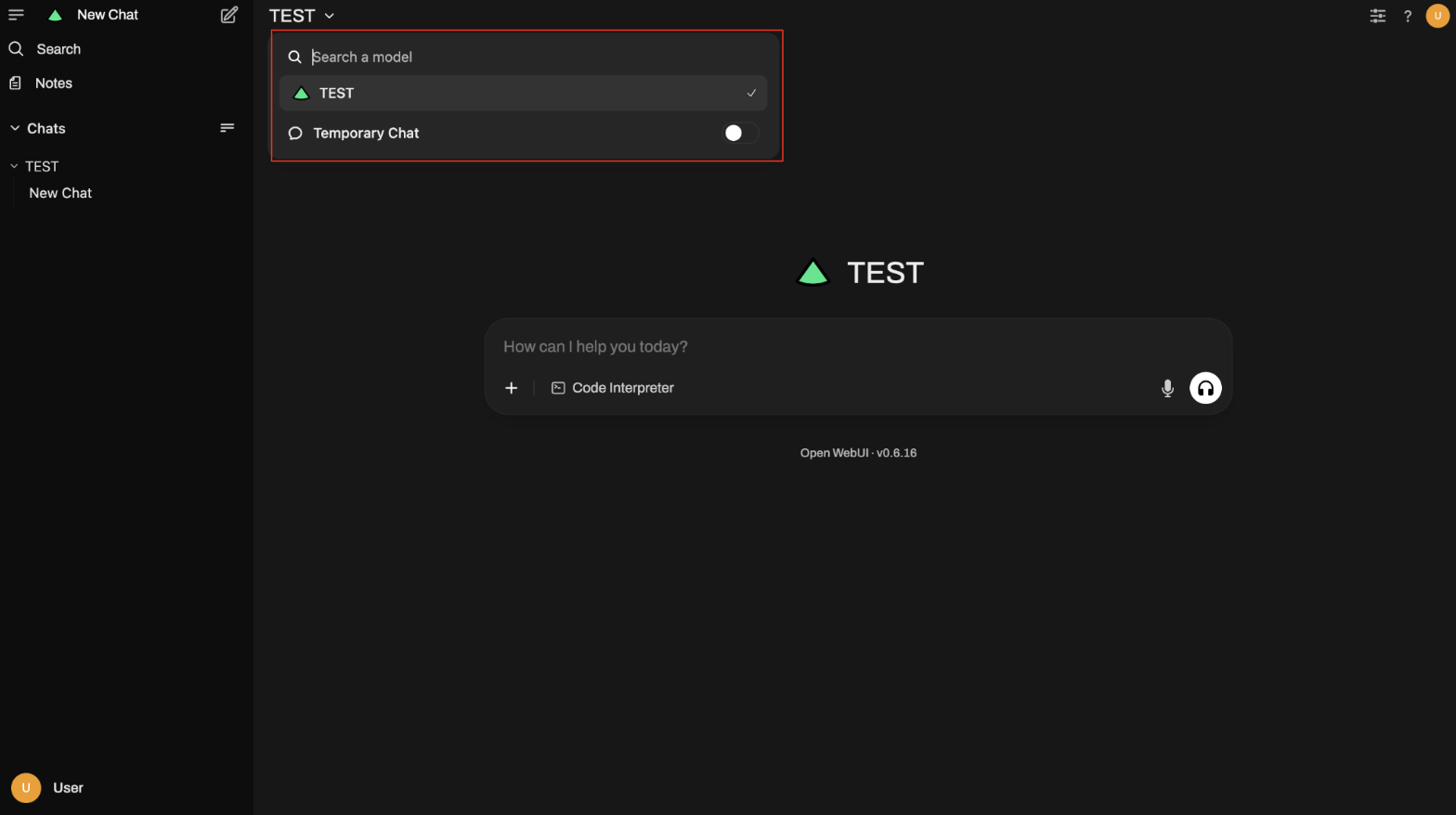
- Model Selection
- File Uploading
Creating a New Chat
Section titled “Creating a New Chat”- The New Chat button lets you start a fresh conversation. When you create a new chat, it will be saved in the sidebar so you can return to it later. Each chat keeps a history of your messages, so you can pick up right where you left off. This is helpful for keeping different topics organized.
To create a new chat:
- Click the Pencil Icon button in the top left of the dashboard

-
A blank conversation window will appear.
-
Start typing your question or message.
-
The chat will automatically be saved and titled based on your first message.
-
You can rename chats, delete them, or continue them anytime from the sidebar.
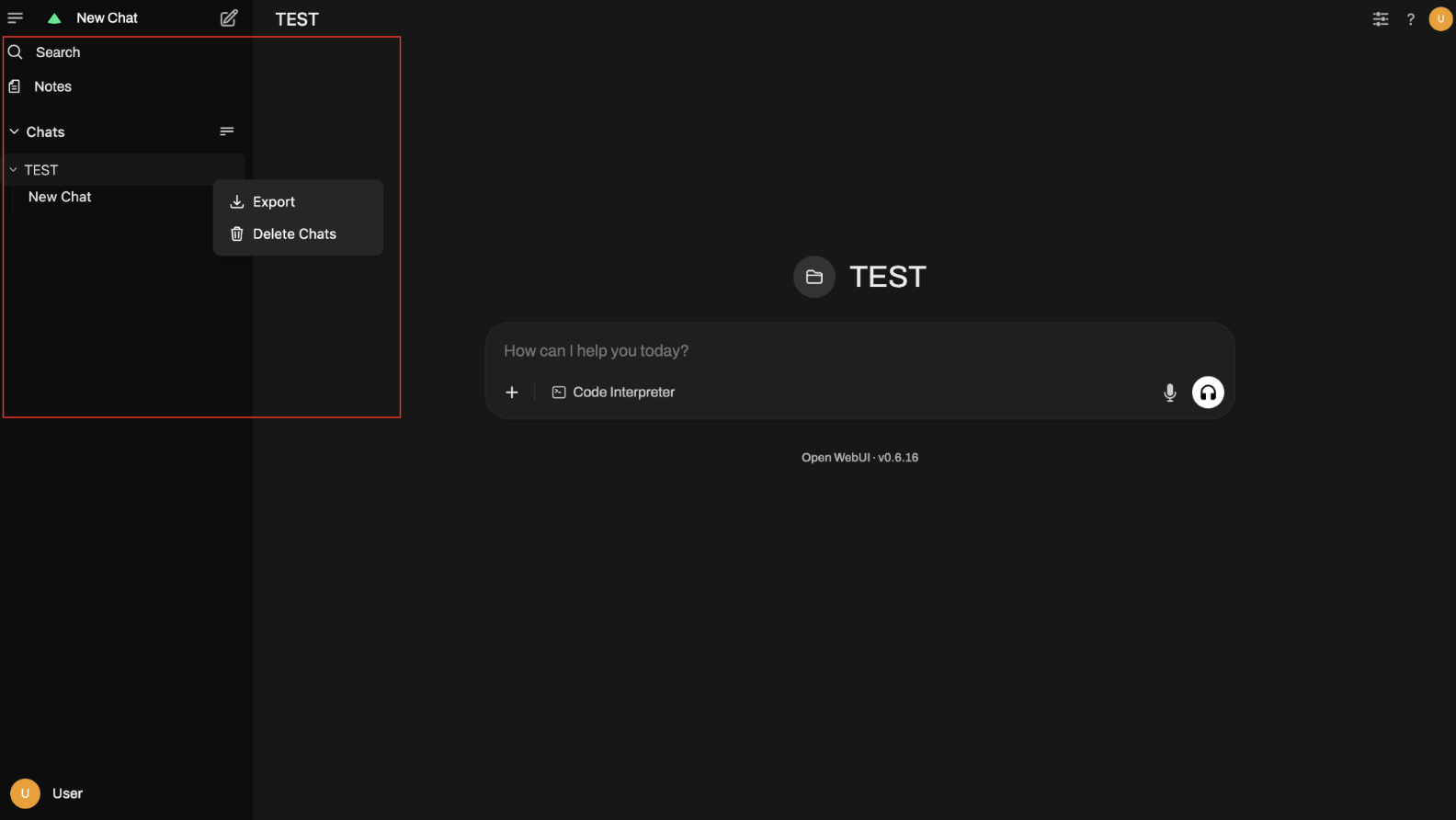
The Sidebar keeps track of all your current and past chats, making it easy to switch between conversations. When you chat with a model, conversations are automatically organized into folders. You can clear all chats in a folder by clicking the “Delete All Chats” button.
The Models Selection shows the models tied to the classes you’re registered for. Your professor adds information for each class to help the model provide useful answers to your questions.