
Navigating Models 🔍
Models
Section titled “Models”Select Models from the bar
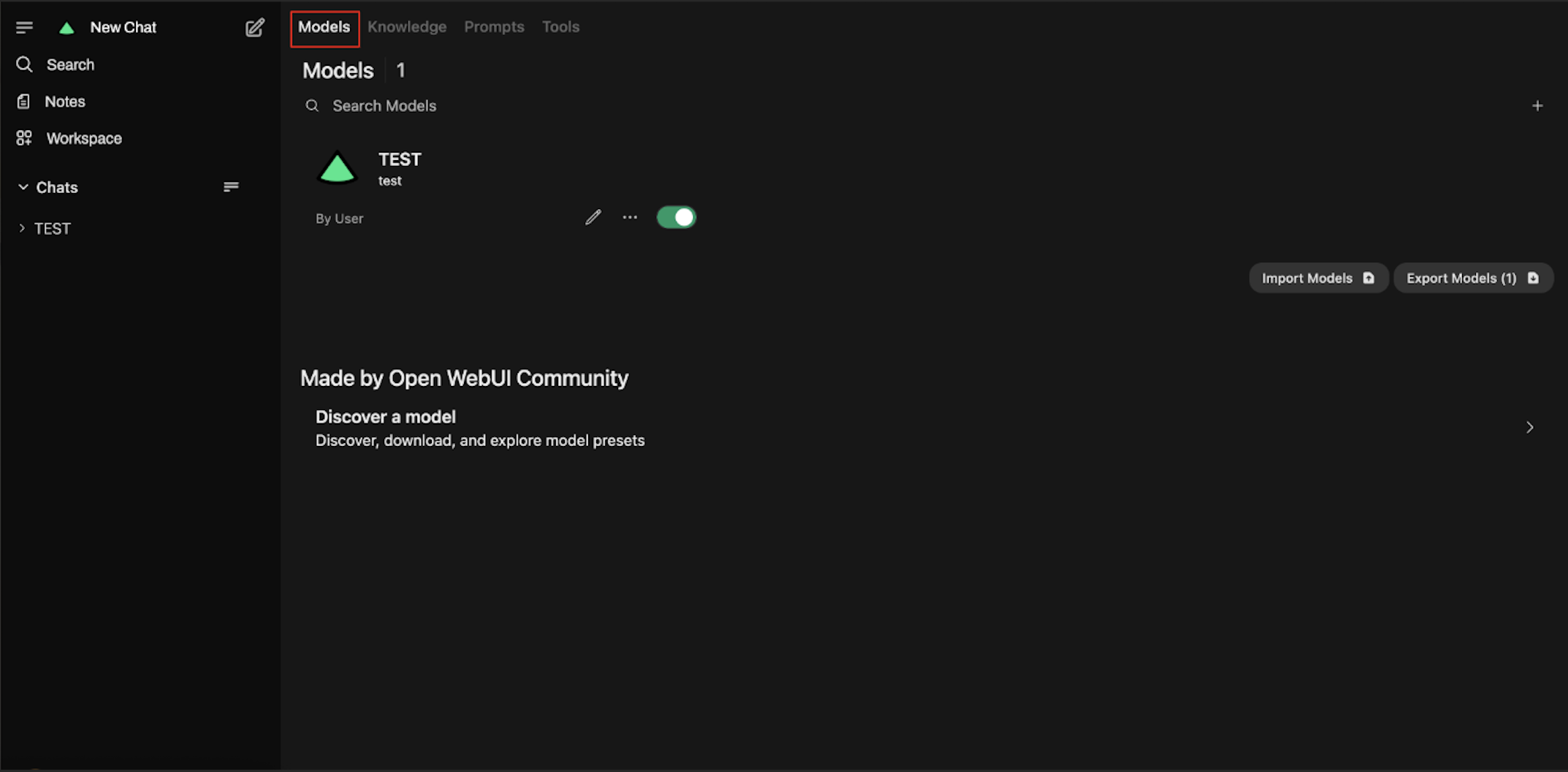
- A template model will be available to all professors. To make changes, you can clone the template or modify the template given to you. This version lets you add or remove prompts, upload files like the syllabus, and customize it to fit your course.
Click the pencil icon to edit the model.
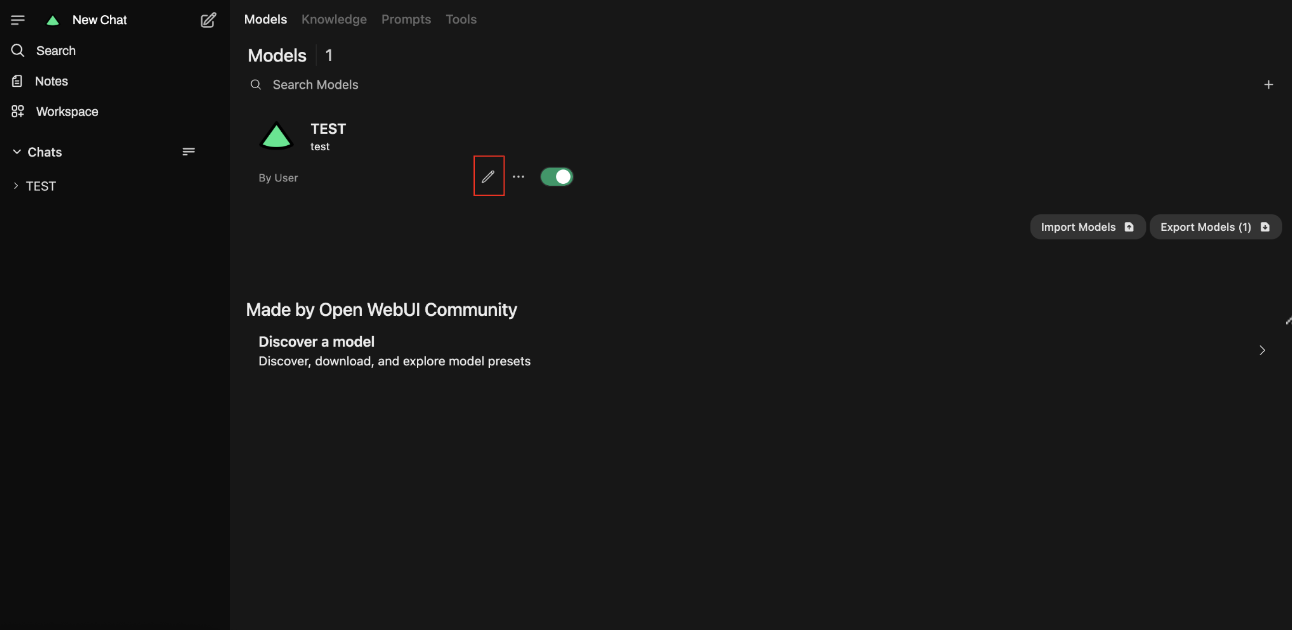
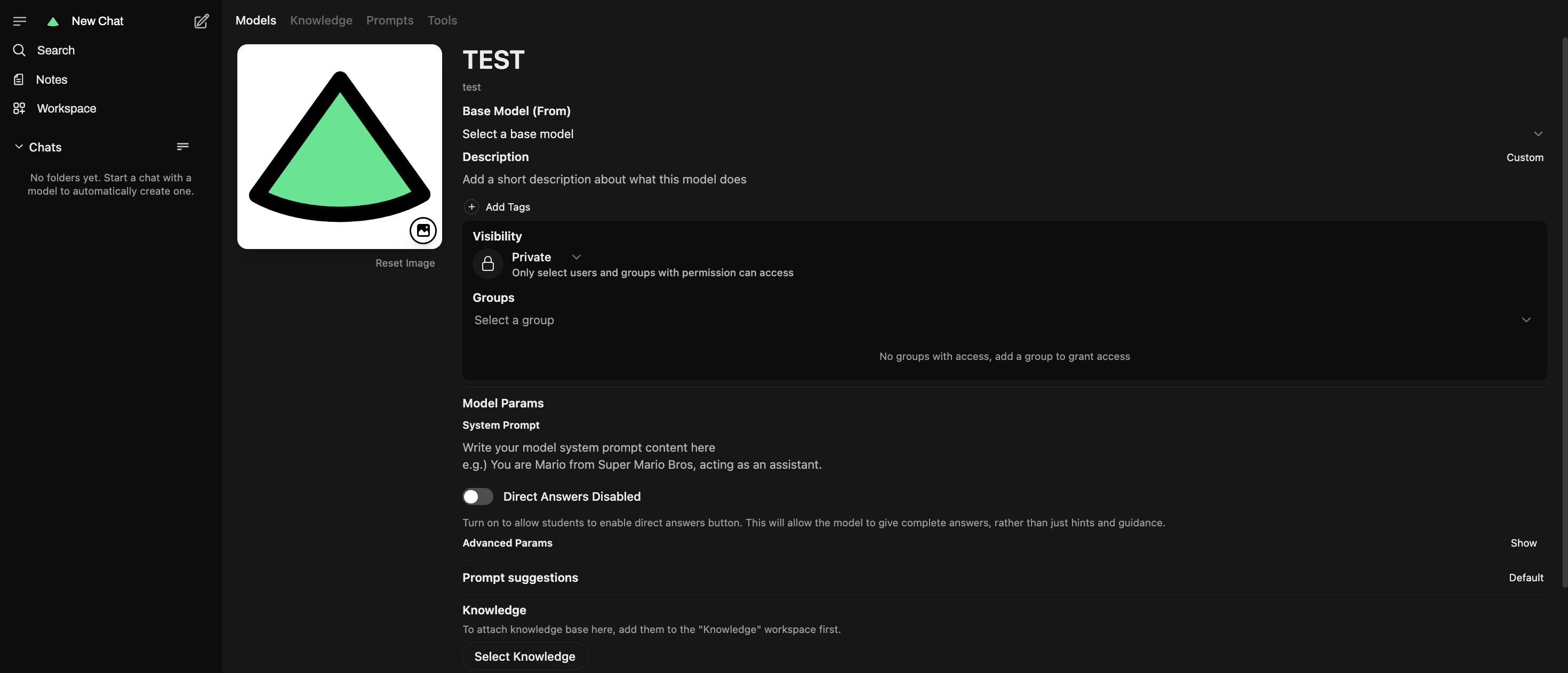
When you click the edit icon, you will be able to modify:
- Model Name - Change the display name of your model
- Description - Add or update the model’s description
- Visibility - Set the model to public or private and assign to certain groups
- Base Model - Select which underlying AI model to use
- System Prompt - Add custom instructions that will be applied alongside the default system prompt
- Direct Answer - Enables a “Direct Answer” button in the chat interface that provides immediate, straightforward responses without the typical conversational guidance
- Prompt Suggestions - Add custom prompt suggestions that appear below the chat input to help guide users with common questions or tasks
- Knowledge - Attach knowledge base files to your model by first adding them to the “Knowledge” workspace. This allows the AI to reference course-specific materials like syllabi, lecture notes, textbooks, or other documents when responding to questions.
The “inspect” permission grants users read-only access to model configurations. Users with this permission can view all model settings but cannot make any changes. The frontend enforces UI restrictions to prevent editing, while the backend ensures proper read/write access control.
Users with inspect access can clone the model to create an editable copy. They can also modify or assign permissions on the cloned version, allowing them to manage access for others as needed.
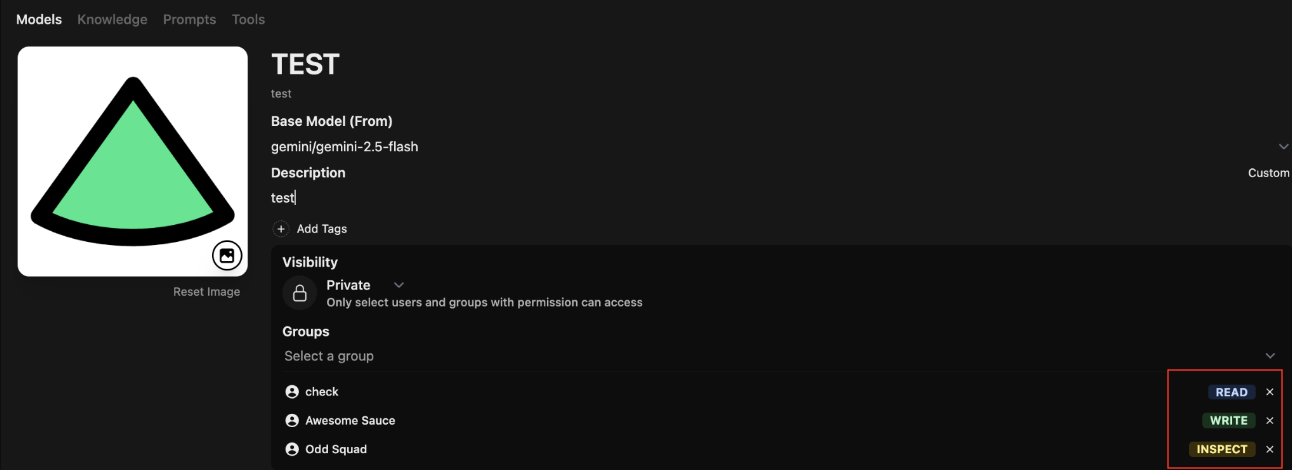
There are three levels of model permissions:
- Read
- Write
- Inspect
The Write permission allows users to edit and clone models. Inspect gives users the ability to view model configurations and clone them, while Read grants access to use the model without any ability to view settings or make changes.
Professors are granted Inspect access to the template models. This allows them to review how each model is set up and clone a version to customize for their own courses as needed.
You can assign specific permissions to different user groups, controlling who can access, view, or modify your model based on their role and needs.