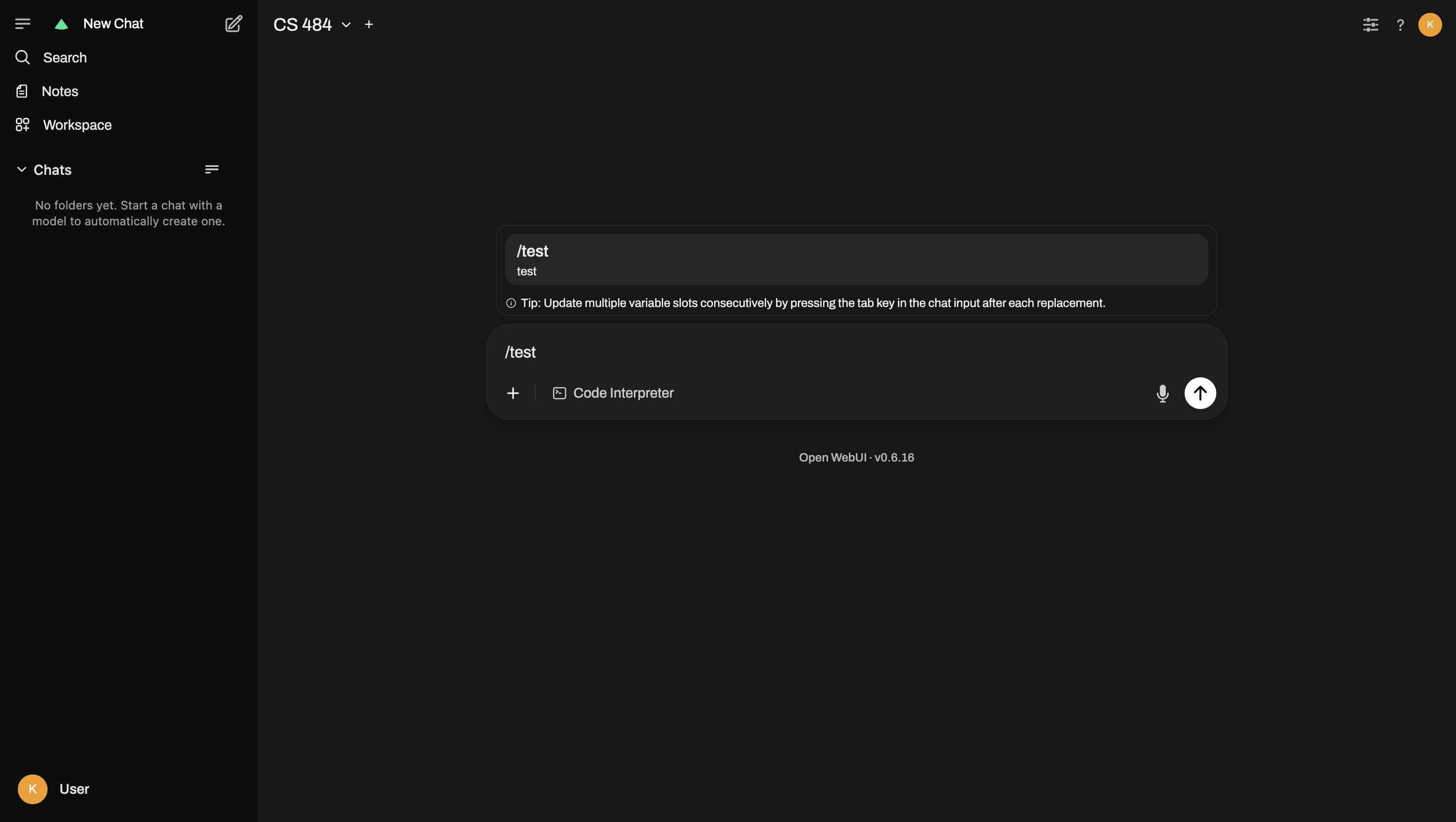
Navigating Prompts 🔍
Prompts
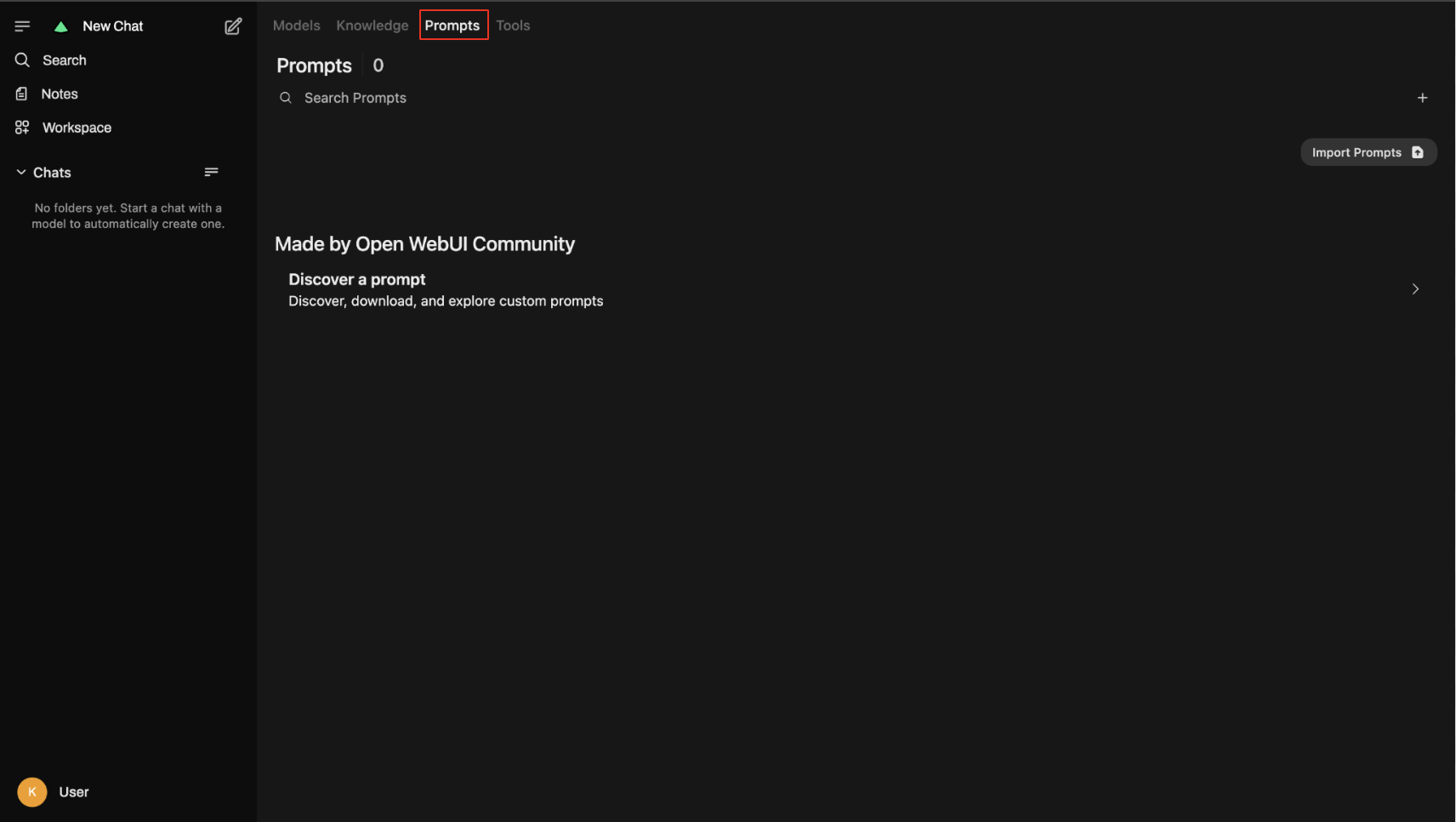
Section titled “Prompts”- Select Prompts from the bar
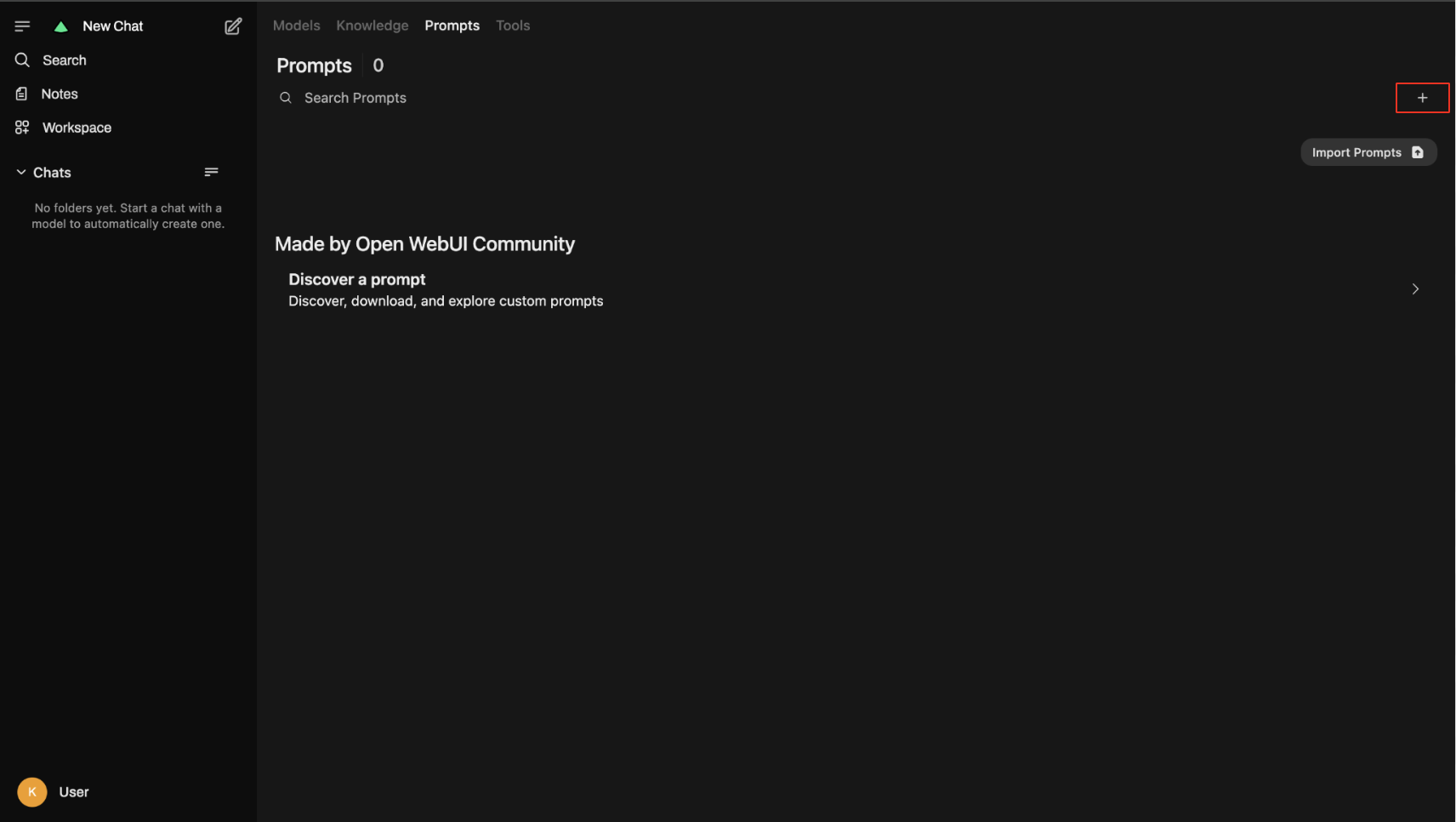
- Click the + icon to create custom prompts that can be reused across different chats. These serve as convenient shortcuts for frequently used instructions, saving time and ensuring consistency in your interactions with the AI assistant.
- After clicking the + icon, you’ll be prompted to create a new prompt template by providing a descriptive title and entering the specific instructions or content you want the prompt to contain. This creates a reusable template that can be quickly accessed in future conversations.
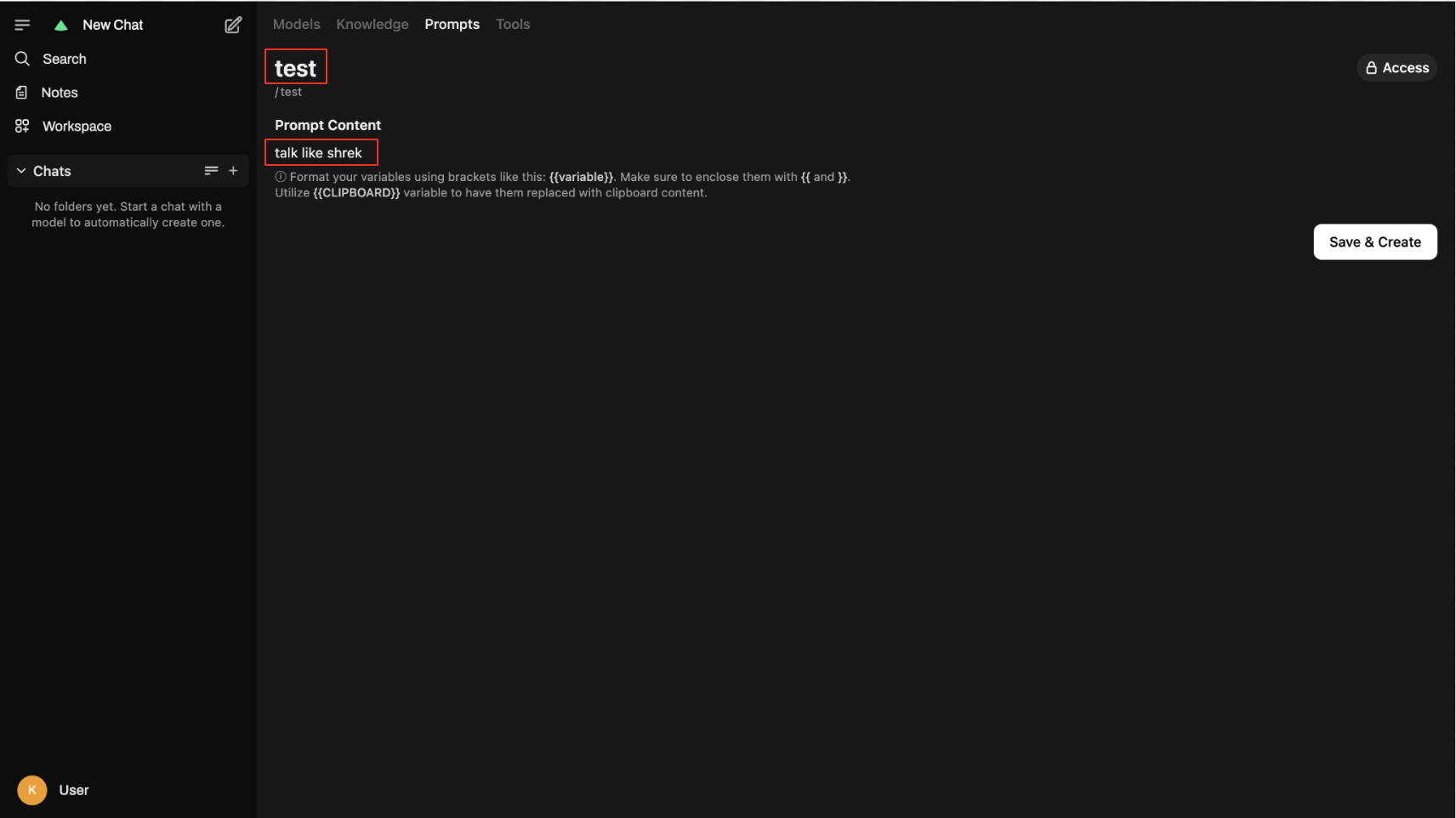
— You can also change the access type of the prompt. If you want it to be public, everyone can use it. If you want it private, you can choose which specific groups have access to the prompt.
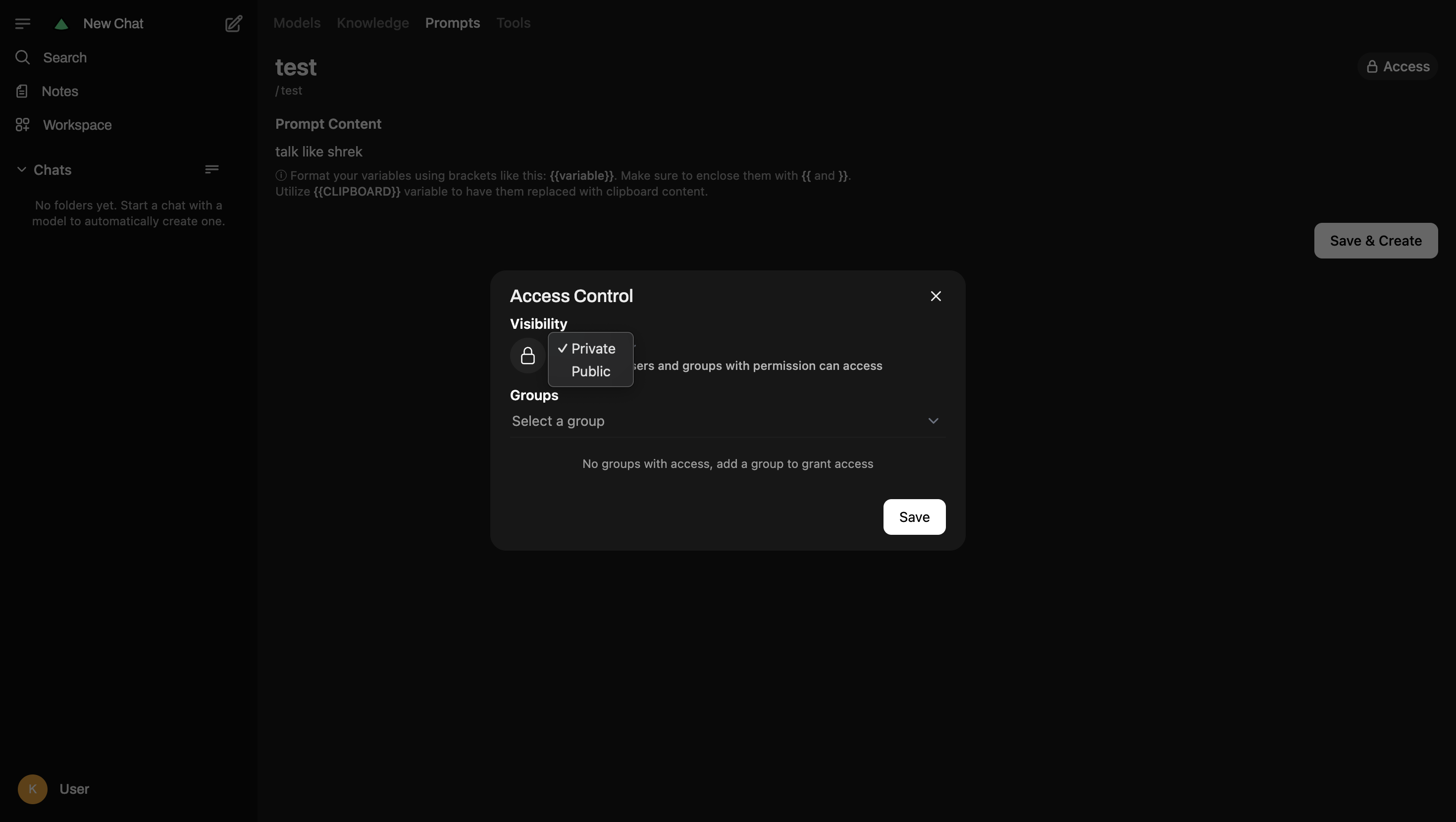
— Then click Save, or Save and Create. To use this prompt in a chat, simply type / followed by the prompt title to quickly access your custom shortcut.